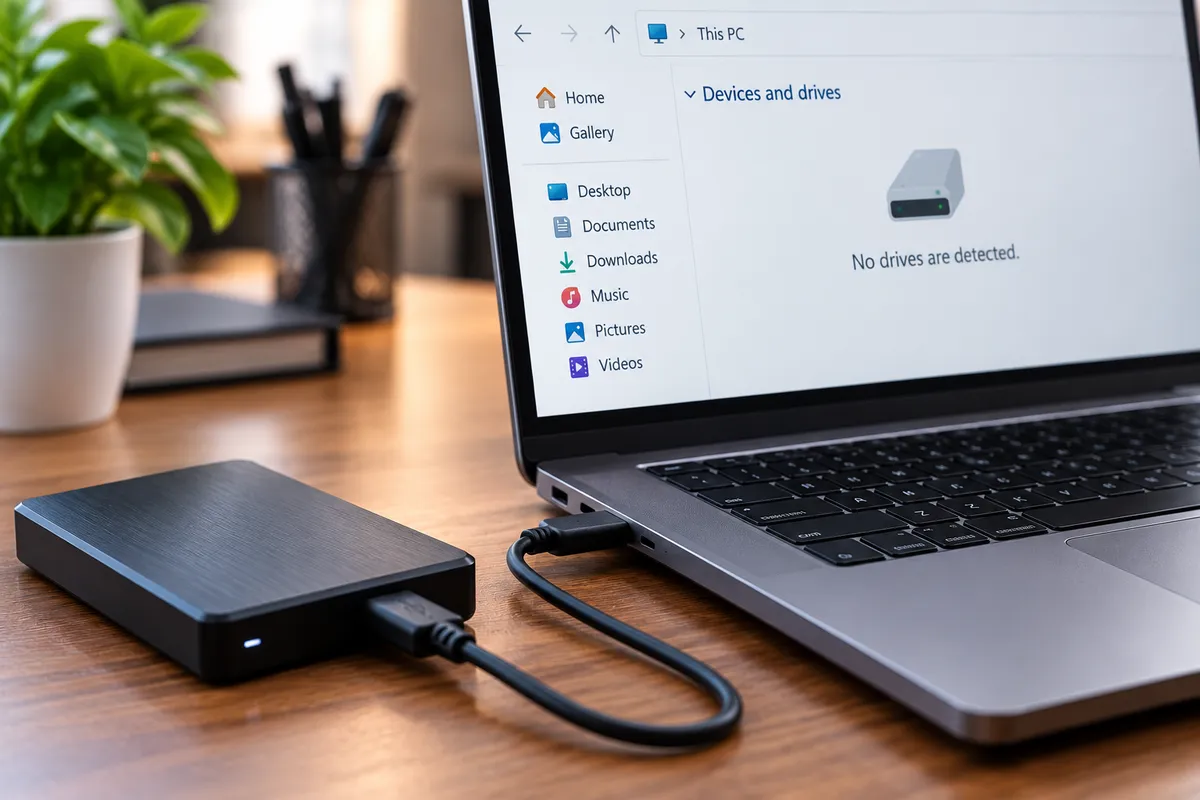
What Should You Do When an External Hard Drive Is Not Detected?
An external hard drive that suddenly stops appearing on your computer can be alarming, especially when it contains work files, family photos, financial records, backups, or other important information. The problem may be as simple as a loose USB cable, but it can also point to a damaged enclosure, failing drive, file-system problem, power issue, or hardware failure.
Quick Repair and Electronics provides data recovery in NYC for customers dealing with inaccessible external drives, hard drives, SSDs, and computers that no longer recognize important storage devices. The safest next step depends on what the drive is doing, whether it is making unusual sounds, and how important the files are.
Start With the Simple Connection Checks
Before assuming the drive itself has failed, check the connection between the external drive and the computer.
Disconnect the drive and reconnect it. If it uses a removable USB cable, try another compatible cable that you know works. Test another USB port as well because a damaged or low-power port can prevent the drive from appearing normally.
If the drive has its own power adapter, confirm that it is connected and receiving power. Some desktop-style external drives require more power than USB alone can provide.
Testing the device on another computer can also help. If the drive appears normally elsewhere, the problem may involve the original computer, USB port, drivers, or operating system rather than the storage device.
Listen for Unusual Hard Drive Sounds
The sounds an external hard drive makes can provide clues.
A healthy mechanical drive may produce light spinning or normal access sounds. Repeated clicking, grinding, beeping, or attempts to spin up and stop can indicate a mechanical problem.
If the drive starts making unusual sounds, stop repeatedly connecting and disconnecting it. Continued power cycles can place more stress on damaged components and may reduce the chances of successful recovery.
Do not open a mechanical hard drive yourself. The internal platters and read/write components are highly sensitive, and accidental contact or contamination can cause more damage.
Check Whether the Drive Appears in the Operating System
Sometimes an external hard drive is powered but does not appear in File Explorer or Finder.
On Windows, the drive may still appear in Disk Management even if it has no drive letter or the file system cannot be mounted normally. On a Mac, it may appear in Disk Utility without showing on the desktop.
That can help distinguish between a connection problem and a problem accessing the volume.
However, do not automatically choose Initialize, Format, Erase, or Create New Volume if the drive contains important data. Those actions can change the drive's structure and complicate recovery.
Why Does the Computer Say the Drive Needs to Be Formatted?
A message saying a drive must be formatted does not necessarily mean the files are gone.
The computer may be unable to understand the file system because of corruption, partition damage, an interrupted write operation, unsafe removal, or developing hardware failure.
Formatting creates a new file-system structure so the computer can use the drive again, but it is not the right first step when you need the existing files.
If the data matters, do not format the external drive simply because the operating system suggests it.
Could the External Enclosure or USB Adapter Be the Problem?
Yes. An external hard drive usually consists of the storage device plus an enclosure, USB interface, cable, and sometimes a separate power supply.
A failure in the enclosure or interface can make a healthy internal drive appear inaccessible. That is why "external drive not detected" does not automatically mean the hard drive itself has failed.
A technician may need to determine whether the fault is with the cable, enclosure, power supply, USB interface, internal drive, or computer.
Can a Failing Hard Drive Still Be Detected Sometimes?
Yes. Storage failure is not always immediate.
A drive may appear after several attempts, disconnect during file transfers, become extremely slow, freeze the computer, or disappear and reappear unexpectedly.
Intermittent detection can be an early warning sign of a failing drive.
If the drive becomes accessible again and the files are important, do not assume the problem has fixed itself. Avoid using the device for normal storage until the cause is understood.
What About External SSDs?
External SSDs do not contain the moving parts found in mechanical hard drives, but they can still fail.
Controller faults, flash-memory wear, electrical damage, firmware problems, file-system corruption, and damaged USB interfaces can prevent an SSD from being detected.
SSD problems may occur without clicking or other obvious warning sounds.
If the external SSD contains important information, avoid formatting, initializing, or repeatedly writing data to it before the problem is diagnosed.
When the Problem May Be the Computer Instead
If several external drives fail to appear on the same computer but work elsewhere, the computer itself may be responsible.
Possible causes include USB port problems, driver issues, operating-system faults, insufficient power from a hub, or other hardware problems.
Quick Repair and Electronics also provides computer repair in NYC for desktop systems with USB, startup, storage, and hardware problems. Testing both the computer and the external drive can help determine which side of the connection is failing.
For portable systems, our laptop repair service can also help when external drives, ports, or other hardware are not behaving normally.
What Should You Avoid Doing?
When important files are involved, the wrong troubleshooting step can matter more than doing nothing.
Avoid repeatedly power-cycling a drive that is clicking or grinding. Do not format or initialize the disk just because the computer prompts you to. Avoid aggressive repair utilities on a drive that appears physically unstable, and do not install recovery software onto the same drive you are trying to recover.
You should also avoid opening the hard drive mechanism itself.
When Should You Consider Professional Data Recovery?
Professional evaluation is worth considering when the drive contains important files and basic cable, port, and computer checks do not resolve the issue.
It is especially important when the drive makes unusual noises, repeatedly disconnects, becomes extremely slow, is not detected on multiple computers, was dropped, suffered liquid exposure, or stopped working after an electrical problem.
Tell the technician what happened before the failure, whether the drive was making unusual sounds, and which troubleshooting steps have already been attempted. That history can help guide diagnosis.
External Hard Drive Data Recovery in NYC
An external hard drive that is not detected does not automatically mean the data is permanently lost. The problem can come from the cable, USB port, enclosure, power supply, file system, computer, or the storage device itself.
The important thing is not to make irreversible changes before understanding the failure.
If your external drive contains files you need and basic connection checks have not restored access, Quick Repair and Electronics can evaluate the device and explain the available options.
Visit our East Village location for professional data recovery in NYC. We can carefully inspect the external drive, determine what may be preventing detection, and help you choose the next step based on the condition of the device and the importance of the data.