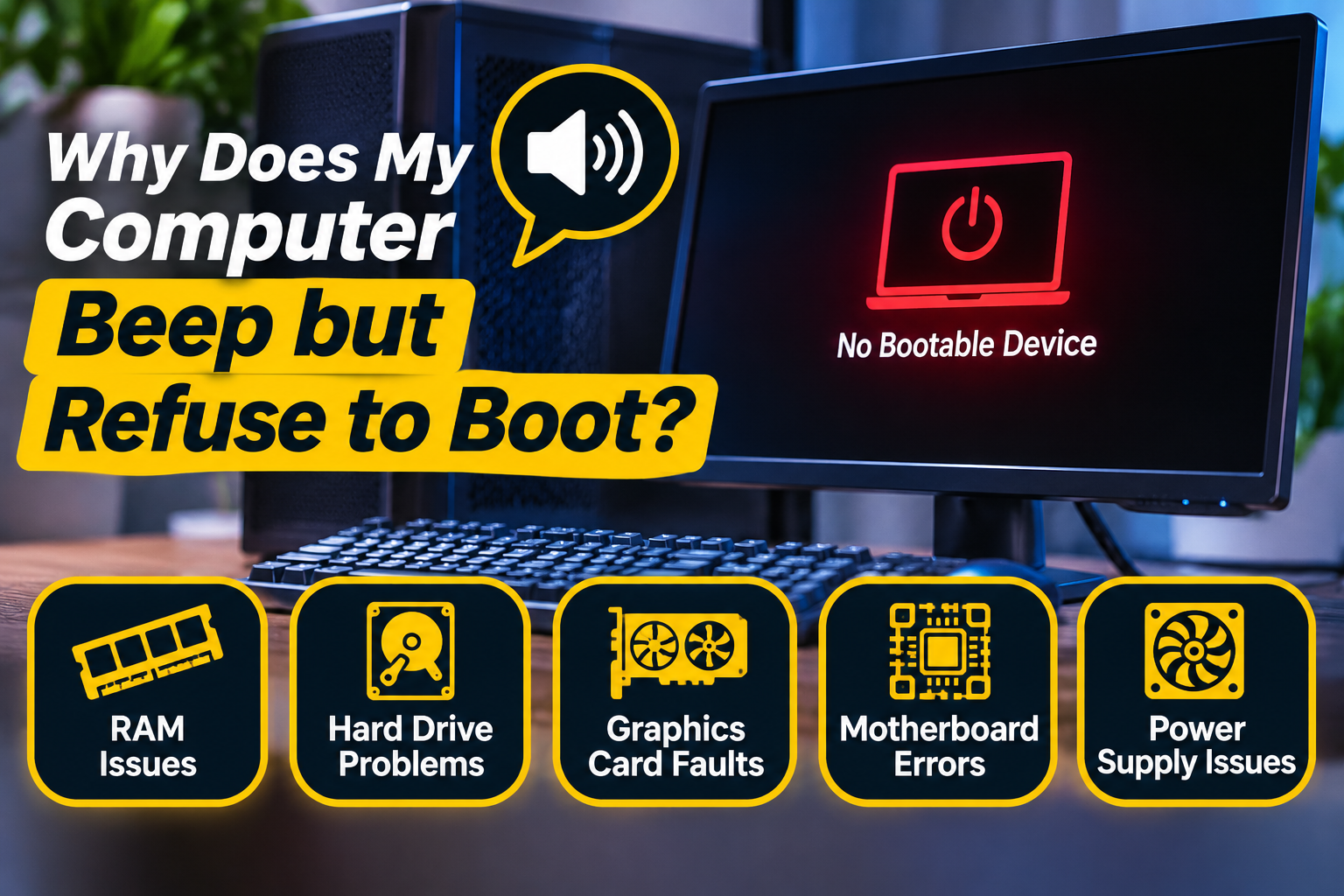
Why Does My Computer Beep but Refuse to Boot?
A computer that beeps but refuses to boot is often trying to tell you that something went wrong before the operating system even started. Those beeps can be part of the motherboard’s hardware diagnostic process. When the system cannot complete its initial checks, it may use audible patterns or diagnostic lights to point toward memory, graphics, processor, or motherboard problems.
Quick Repair and Electronics provides computer repair in East Village, NYC for no-boot problems, hardware faults, black screens, and startup failures. The useful clue is not simply that the computer beeps, but when it happens and what the system does afterward.
The Beeps Happen Before Windows Loads
When a desktop powers on, the motherboard performs a power-on self-test before handing control to the operating system. It checks whether critical hardware is present and responding well enough to continue startup.
If that check fails, the system may stop before showing the Windows logo. Fans can spin and lights can turn on even though the computer has not successfully initialized. This is why a PC can appear to have power while still refusing to boot.
Beep Codes Are Not Universal
Different motherboard and computer manufacturers use different beep patterns. One long beep on one system may mean something completely different on another. Some modern boards replace audible codes with LEDs, two-digit displays, or labeled diagnostic lights.
Do not rely on a random beep-code chart unless it matches the exact motherboard or computer model. The pattern is useful evidence, but it must be interpreted in the context of the hardware.
Memory Problems Are a Common Cause
Loose, incompatible, or failing RAM can stop a computer before it reaches the operating system. A system may begin beeping after the computer was moved, cleaned, upgraded, or opened for service.
Reseating memory is a common diagnostic step, but internal components should be handled carefully with power disconnected. If the PC has multiple memory modules, testing them individually may help isolate a fault. On business or custom-built systems, configuration and slot placement can matter as much as the module itself.
Graphics Hardware Can Also Stop Startup
A dedicated graphics card that is loose, improperly powered, or failing can prevent video output and trigger hardware diagnostics. The computer may seem to boot because the fans run, yet the monitor remains black.
Check whether the display cable is connected to the correct graphics output and whether the card’s power connectors are secure. If the problem began after moving the computer or installing hardware, graphics seating becomes a stronger possibility.
Power Supply and Motherboard Faults Can Create Similar Symptoms
A failing power supply does not always result in a completely dead computer. It may deliver enough power for lights and fans while failing to provide stable voltage to the processor, memory, or graphics hardware.
Motherboard faults can create equally confusing behavior. Damaged slots, failed power circuitry, BIOS problems, or other board-level issues may produce beeps, restart loops, or a system that never reaches the startup screen.
What Changed Before the Problem Started Matters
The fastest diagnostic clue is often the recent history. Did the PC stop booting after a RAM upgrade, graphics-card installation, power outage, move, cleaning, or crash? Hardware that was recently disturbed should be checked before unrelated parts are replaced.
If nothing changed, age and failure become more likely. Record the beep pattern, note any diagnostic LEDs, and avoid repeatedly swapping parts without a plan. Random replacement can create additional variables instead of finding the cause.
Important Files May Still Be Safe
A no-boot hardware failure does not automatically mean the files on the SSD or hard drive are gone. The operating system may never load because of RAM, graphics, power, or motherboard problems while the storage remains healthy.
If the computer contains important data, mention that before troubleshooting becomes invasive. Quick Repair and Electronics also provides data recovery services when storage access becomes the priority.
What You Can Check Safely Before Bringing the PC In
Start with external basics. Confirm that the monitor is connected correctly, disconnect unnecessary USB devices, and listen carefully to the beep pattern instead of repeatedly power-cycling the computer. If the motherboard has labeled diagnostic LEDs, note which one remains lit.
If you recently installed RAM or a graphics card and are comfortable working inside a desktop, disconnect power before checking whether the new component is fully seated. Do not open a power supply or force connectors that do not align naturally. If the system contains valuable data or unfamiliar hardware, stopping early is better than creating a second fault.
A Successful Repair Depends on Testing, Not Guessing
Beep codes narrow the search, but they do not always identify the failed part with certainty. A memory code can be caused by a bad module, a damaged slot, a motherboard issue, or even a processor-related memory controller problem. The same principle applies to graphics and power faults.
Systematic testing matters because replacing parts one at a time can become expensive quickly. A technician can isolate components, verify power delivery, test memory configurations, and determine whether the board is completing its early startup stages before recommending replacements.
What Happens After the Fault Is Isolated
Once the failed area is identified, the repair may be as simple as replacing bad memory or reseating a component, or it may require power-supply, graphics-card, or motherboard service. The important part is confirming the cause before parts are purchased. That keeps a no-boot repair focused and prevents the computer from becoming a collection of unnecessary replacement parts.
Do Not Ignore Repeated Failed Starts
Repeatedly turning a no-boot computer on and off rarely fixes a hardware fault. If the system is beeping, restarting, or stopping at the same point each time, record the behavior and stop after a few controlled attempts. That is especially important if you smell burning, hear electrical clicking, or notice unusual heat. A stable diagnostic starting point is more useful than dozens of unsuccessful startup attempts that may stress a weak power supply or failing component.
Bring the Details, Not Just the Computer
If possible, note the beep count, whether the pattern repeats, which lights stay on, and whether the monitor ever shows a logo. Bring information about recent upgrades, crashes, or power outages as well. Those details shorten the diagnostic path because they show where startup is failing before the system reaches Windows.
Get No-Boot Computer Repair in East Village, NYC
A computer that beeps and refuses to boot is usually failing an early hardware check. The cause may involve RAM, graphics hardware, power delivery, the motherboard, or another component that must initialize before Windows can load.
Quick Repair and Electronics provides computer repair in East Village, NYC for no-boot and startup problems. Bring the desktop in and tell us what happened before the failure, whether hardware was recently changed, and what beep or light pattern you noticed. Our technicians can test the system methodically and explain the repair options instead of replacing parts by guesswork.