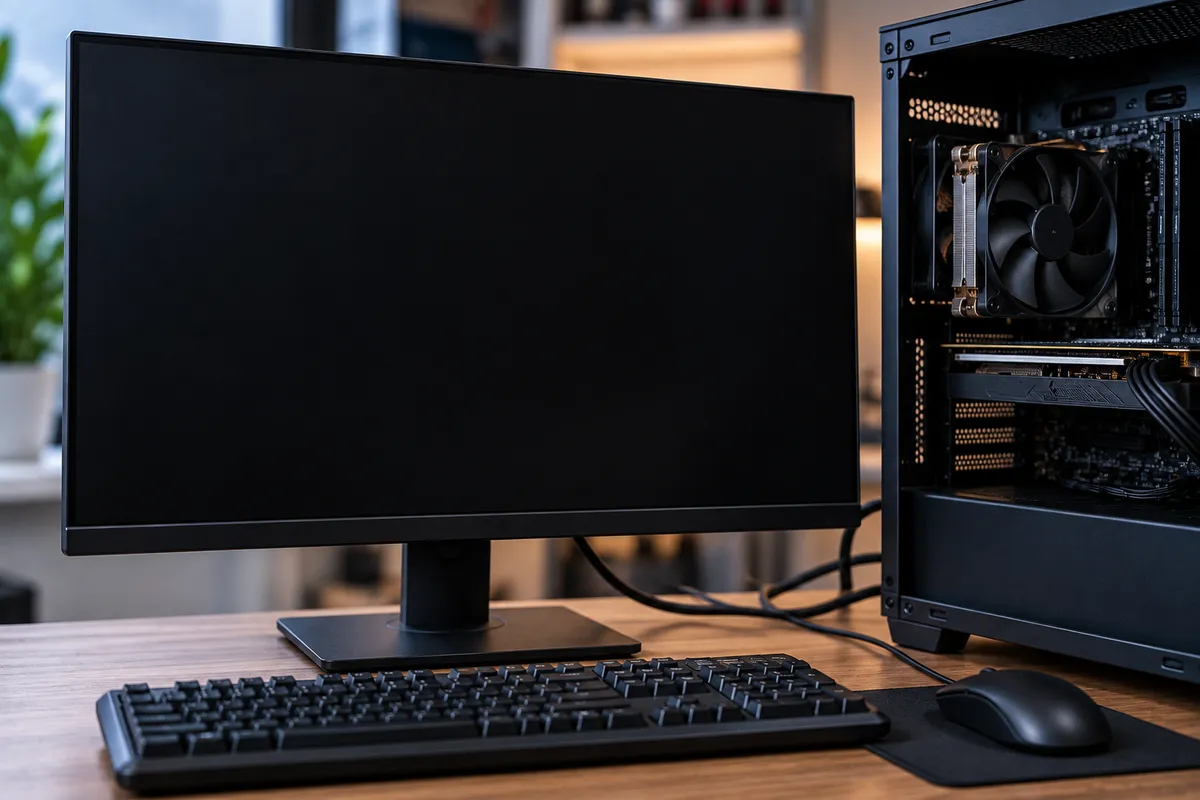
Why Does My PC Turn On but Show a Black Screen?
A PC that powers on but shows a black screen can be confusing because the computer may seem partly functional. The fans may spin, lights may come on, and you may even hear startup sounds, but nothing appears on the monitor.
A black screen does not automatically mean the computer is completely dead. The problem could involve the monitor, video cable, graphics card, memory, power supply, motherboard, operating system, or another component in the startup process.
Quick Repair and Electronics provides professional computer repair in NYC for black screens, startup failures, hardware problems, slow performance, and other PC issues. The key is determining whether the computer is failing to produce a display signal or whether it is starting normally and losing the picture later.
What Does It Mean When a PC Turns On but Shows No Display?
When you press the power button, several things need to happen before you see the desktop.
The power supply must deliver stable power, the motherboard must initialize the processor and memory, the graphics system must generate a display signal, and the monitor must receive and show that signal. After that, the computer loads the operating system from its storage drive.
A failure at any point can leave you staring at a black screen.
The timing of the problem matters. A PC that never shows a logo or startup screen has a different problem from a computer that displays normally during startup and then goes black when Windows begins loading.
That distinction can help narrow down the cause.
Check the Monitor and Video Cable First
Before opening the computer, rule out the simplest possibilities.
Make sure the monitor has power and is set to the correct input. Many monitors support HDMI, DisplayPort, and other connections, and the selected input may have changed accidentally.
Inspect the display cable for loose connections or visible damage.
If possible, try:
Reconnecting both ends of the video cable
Testing another HDMI or DisplayPort cable
Trying another monitor or television
Using another video output on the computer
If another monitor works immediately, the PC itself may be functioning normally and the original monitor or cable may be the problem.
Make Sure the Monitor Is Connected to the Correct Video Port
This is especially important on desktop PCs with dedicated graphics cards.
A computer may have display ports on both the motherboard and the graphics card. If the PC uses a dedicated GPU, the monitor normally needs to be connected to the ports on that graphics card.
Connecting the cable to the motherboard video output may result in no display on systems where integrated graphics is unavailable or disabled.
If the problem started after moving the computer or reconnecting cables, check that the display cable is connected to the same area it used previously.
RAM Problems Can Cause a Black Screen
Memory problems are a common reason a computer appears to power on but never produces an image.
The PC may light up and run its fans, but the motherboard may be unable to complete its initial hardware checks if the RAM is loose, damaged, or not being detected properly.
This can happen after:
Moving the computer
Installing new memory
Cleaning inside the case
A hardware upgrade
Component failure
Some motherboards have diagnostic lights or beep codes that can indicate a memory problem.
Reseating RAM is sometimes part of troubleshooting, but internal PC components should be handled carefully. Power should be disconnected before touching components, and static electricity can damage sensitive hardware.
If you are not comfortable working inside the computer, professional diagnosis is safer.
The Graphics Card May Be Causing the No-Display Problem
A dedicated graphics card is responsible for generating the video signal on many desktop PCs.
If the GPU is loose, damaged, improperly powered, or failing, the computer may turn on without displaying anything.
Possible signs of a graphics-related problem include:
No signal from multiple monitor ports
Display problems beginning after moving the PC
Visual artifacts before the screen goes black
Crashes during gaming or graphics-heavy work
Fans and lights running while the monitor receives no signal
A failing graphics card is only one possibility, so replacing the GPU immediately is not always the right approach.
Testing the computer with alternative graphics hardware, where supported, can help confirm whether the GPU is actually responsible.
Could the Power Supply Be the Problem?
Yes.
A PC can sometimes receive enough power to turn on fans and lights without receiving stable power across all components.
A weakening or failing power supply may cause startup problems, black screens, sudden shutdowns, or inconsistent behavior.
This is especially relevant if the PC recently received a new graphics card or other hardware that increased its power requirements.
Power-supply problems should be diagnosed carefully because the same symptoms can also come from the motherboard, GPU, RAM, or other components.
A Black Screen After the Windows Logo Can Be Different
If you can see the manufacturer logo, BIOS screen, or Windows loading animation before the display goes black, the computer has already completed much of its hardware startup process.
That makes a software, driver, or operating-system issue more likely than in a PC that never produces any image at all.
Potential causes include:
Corrupted graphics drivers
Failed Windows updates
Operating-system problems
Startup software conflicts
Display configuration issues
The computer may still be running in the background even though the desktop is not visible.
Repair in this situation usually involves determining whether the problem is related to software or whether a hardware issue appears only when the operating system begins using the graphics hardware more heavily.
Can a Hard Drive or SSD Cause a Black Screen?
Storage problems can sometimes result in a PC that powers on but cannot complete the startup process.
A failing hard drive or SSD may cause long loading times, freezing, startup repair screens, error messages, or a system that becomes stuck before reaching the desktop.
However, a storage problem usually does not prevent the computer from displaying the BIOS or manufacturer logo.
If you cannot access Windows and the computer contains important files, avoid repeatedly reinstalling the operating system or formatting the storage device without understanding the problem first.
If file access becomes the priority, our data recovery service in NYC focuses on inaccessible hard drives, SSDs, and other storage-related problems.
Motherboard or CPU Problems Can Also Cause No Display
More serious internal hardware failures can also produce a black screen.
The motherboard coordinates communication between the processor, memory, storage, graphics hardware, and other components. If part of that system fails, the PC may receive power but never complete its startup sequence.
CPU failures are less common than issues involving memory, graphics, power, or storage, but processor or motherboard problems should still be considered when basic troubleshooting does not identify the cause.
Diagnostic lights, beep codes, and component testing can help narrow the problem down.
What Should You Try Before Bringing the PC in for Repair?
Start with external checks before opening the case.
Confirm that the monitor is powered on, verify the correct input source, reconnect the video cable, and test another cable or display if available.
Disconnect unnecessary USB devices and try restarting the computer.
If the PC has a dedicated graphics card, confirm that the monitor is connected to it rather than the motherboard output.
Pay attention to any unusual behavior such as repeated restarts, diagnostic lights, beep codes, unusual fan activity, or whether the system displayed anything before the screen went black.
Those details can be useful during diagnosis.
When Should a Black Screen Be Professionally Diagnosed?
Professional diagnosis makes sense when the computer continues showing no display after basic monitor and cable checks.
It is especially important if the problem began after a hardware upgrade, power issue, overheating event, drop, liquid exposure, or internal repair.
A technician can test the system systematically instead of replacing parts based on guesswork.
That may involve checking the RAM, graphics card, power supply, motherboard, storage, display outputs, and startup behavior.
Computer Black Screen Repair in NYC
A black screen can come from something as simple as a loose cable or something more involved such as failed memory, graphics hardware, power delivery, or motherboard problems.
Quick Repair and Electronics can inspect the system and determine what is preventing the computer from displaying normally.
If your desktop powers on but the screen stays black, visit our East Village location for professional computer repair in NYC.
Our team can evaluate the PC, explain what we find, and discuss the repair options that make sense based on the condition of the system.