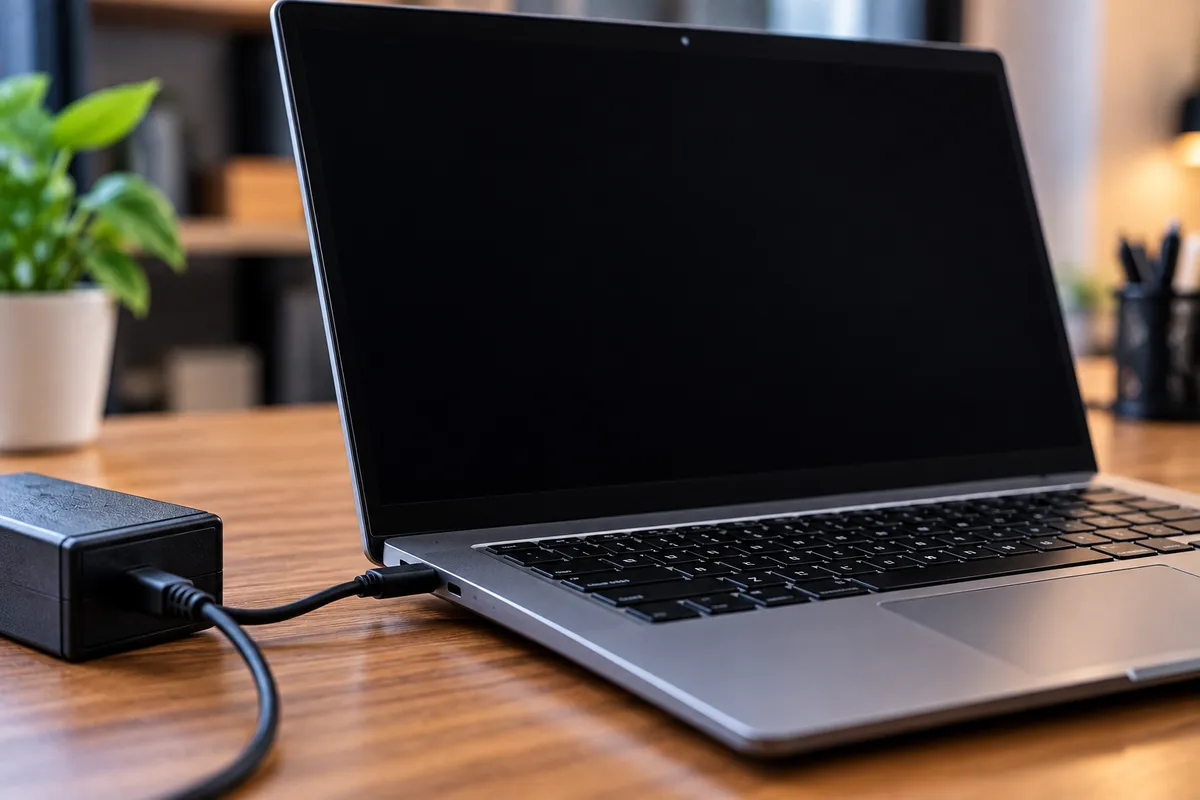
Why Won’t My Laptop Turn On Even When It’s Plugged In?
A laptop that will not turn on even when it is connected to a charger can be frustrating, especially when there is no obvious sign of what failed. You may see no lights, hear no fans, and get no response from the power button. In other cases, the charging light may come on, but the screen stays black or the laptop shuts down immediately.
The problem could involve the charger, battery, charging port, motherboard, memory, display, or another internal component. The key is identifying whether the laptop is receiving power and where the startup process is failing.
Quick Repair and Electronics provides professional laptop repair in NYC for power problems, charging issues, battery faults, damaged ports, startup failures, and other laptop concerns. If your laptop will not turn on even while plugged in, a proper diagnosis can help determine whether the issue is simple or requires hardware repair.
Why Can a Laptop Stay Completely Dead While Plugged In?
Being connected to a charger does not guarantee that power is actually reaching the laptop.
A working power system depends on several components:
The wall outlet
Power adapter
Charging cable
Charging port
Battery
Internal power circuitry
Motherboard
If one part of that chain fails, the laptop may not receive enough power to start.
A computer can also appear completely dead even when power is present. For example, the motherboard may receive electricity but fail to initialize, or the screen may remain black while the laptop itself is running.
That is why the exact symptoms matter.
Start by Checking the Charger and Power Outlet
Before assuming the laptop has a serious hardware problem, rule out the external power source.
Try plugging the charger into another wall outlet. If you normally use a power strip, bypass it temporarily and connect directly to the wall.
Inspect the charging cable and adapter for signs of damage such as:
Frayed insulation
Bent connectors
Loose cable sections
Burn marks
Unusual heat
A damaged power brick
If you have access to another compatible charger with the correct voltage and wattage, testing it can help determine whether the adapter is responsible.
Avoid using a charger that is not designed for your laptop simply because the connector fits.
The Charging Port May Be Damaged
A damaged charging port can prevent power from reaching the battery or motherboard.
You may notice that the charger feels loose, only works when held at an angle, disconnects when the laptop moves, or no longer produces a charging indicator.
Charging ports can wear over time or become damaged after a laptop is dropped while plugged in.
USB-C charging laptops can also experience port wear, damaged contacts, or power-delivery issues.
If the laptop previously charged only when the connector was positioned a certain way and now no longer turns on, the charging port should be inspected.
Our laptop repair service covers charging problems and related hardware concerns.
Can a Dead Battery Stop a Laptop From Turning On?
Yes, but it depends on the laptop design and the condition of the power system.
Some laptops can operate directly from the charger even if the battery is completely depleted or defective. Others may behave differently depending on how the battery and motherboard power circuits are designed.
A failing battery may cause:
Unexpected shutdowns
Failure to hold a charge
Very short battery life
Inconsistent charging
Power loss when unplugged
Difficulty turning on
If the battery is swollen, stop using the laptop. Swelling may push against the trackpad, keyboard, or bottom cover.
Do not press the casing back into place or continue charging a visibly swollen battery.
Try a Basic Power Reset
Sometimes residual electrical charge or a temporary power-state problem can prevent a laptop from starting normally.
A basic power reset may help on some models.
Disconnect the charger and any external accessories. If the battery is removable, remove it. Hold the power button for approximately 15 to 30 seconds, then reconnect the charger and try turning the laptop on again.
For laptops with sealed internal batteries, the exact reset procedure can vary by manufacturer.
This type of reset may resolve a temporary electrical state, but it will not repair a damaged charging port, failed battery, motherboard problem, or other hardware fault.
What If the Charging Light Comes On but the Laptop Does Not Start?
A charging light tells you that at least part of the power system is responding, but it does not confirm that the laptop can complete startup.
Possible causes can include:
Battery failure
Memory problems
Motherboard faults
Display failure
Power-button issues
Internal connector problems
Pay attention to whether the laptop makes sounds, spins its fan, lights the keyboard, or produces any other response when you press the power button.
Those details can help distinguish a complete power failure from a no-display problem.
The Laptop May Be Turning On With a Black Screen
Sometimes a laptop appears dead because the display is not working.
If you hear fans, startup sounds, notification tones, or drive activity while the screen remains black, the laptop may actually be running.
A black screen can involve:
A failed display panel
Damaged display cable
Graphics hardware
Memory problems
Backlight failure
Motherboard issues
Testing with an external monitor can sometimes help determine whether the built-in display is responsible.
If the laptop behaves as though it is running but produces no image, the problem is different from a laptop that receives no power at all.
RAM Problems Can Prevent Startup
Faulty or poorly seated memory can prevent some laptops from completing their startup sequence.
The device may show lights or fan activity without producing an image, or it may restart repeatedly.
Memory issues sometimes develop after a drop, internal service, or hardware failure.
Some systems have diagnostic lights or beep patterns that can provide useful clues.
Because laptop memory can be difficult to access and some modern devices use soldered RAM, internal troubleshooting should be approached carefully.
Could the Motherboard Be the Problem?
If the charger, battery, and charging port appear functional but the laptop still does not respond, the motherboard or internal power circuitry may be involved.
Possible causes include:
Power-controller failure
Electrical damage
Liquid exposure
Short circuits
Damaged motherboard components
Previous overheating
A motherboard problem cannot usually be confirmed from the symptom alone because several smaller faults can make a laptop appear completely dead.
Professional diagnosis helps determine whether the motherboard itself has failed or another component is interrupting the startup process.
Liquid Damage Can Cause a Laptop to Stop Powering On
If the laptop was exposed to water, coffee, soda, or another liquid, internal corrosion or electrical damage may prevent startup.
Liquid does not need to cause immediate failure.
A laptop may continue working after a spill and stop powering on later as corrosion develops.
If liquid exposure is suspected, repeatedly connecting the charger or pressing the power button may create additional risk.
Disconnect external power and have the device inspected.
Tell the technician what type of liquid was involved and approximately when the spill happened.
What If Important Files Are Stored on the Laptop?
If the laptop contains important documents, photos, business files, or other data, mention that before repair work begins.
A laptop that will not power on does not necessarily mean the files are gone.
The failure may involve the motherboard, battery, charging system, or display while the storage drive remains readable.
If the SSD or hard drive itself is damaged, the repair strategy may need to prioritize file recovery.
Quick Repair and Electronics also provides data recovery in NYC for inaccessible storage devices and computers that no longer boot normally.
When Should You Stop Troubleshooting at Home?
Basic external checks are reasonable, but repeated power attempts may not help when a hardware problem is involved.
Professional diagnosis is recommended if:
The laptop shows no signs of power with multiple known-good chargers
The charging port feels damaged or loose
The device was recently dropped
The laptop was exposed to liquid
The battery appears swollen
You smell burning or see discoloration near the charging area
The laptop repeatedly turns on and shuts off
Important data is stored on the device
At that point, testing the internal hardware is safer than continuing to guess.
Laptop Won’t Turn On Repair in NYC
A laptop that refuses to power on can have a problem with the charger, battery, charging port, memory, display, motherboard, or another part of the power system.
Quick Repair and Electronics can inspect the device and determine where the startup process is failing.
If your laptop will not turn on even when it is plugged in, visit our East Village location for professional laptop repair in NYC.
Our team can evaluate the charging system, battery, hardware, and startup behavior, explain what we find, and discuss the repair options that make sense for the condition of the laptop.