Laptop Fan Loud and Computer Getting Hot? | Quick Repair NYC
Why Is My Laptop Fan So Loud and the Computer Getting Hot?
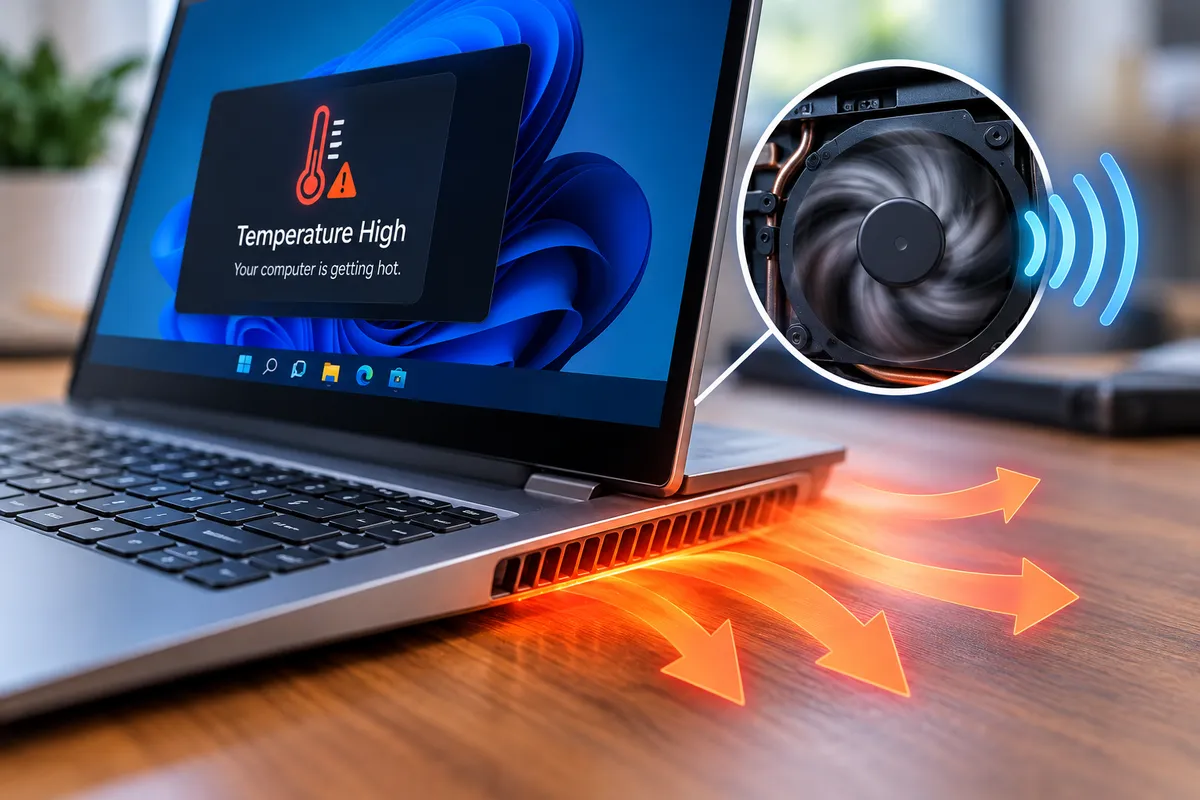
A laptop fan that suddenly becomes loud while the computer feels unusually hot is usually reacting to increased temperature. Sometimes that is normal during gaming, video editing, software updates, or other demanding work. It becomes more concerning when the fan runs at high speed during basic tasks, the laptop stays hot while idle, or performance begins to slow down.
Quick Repair and Electronics provides laptop repair in East Village, NYC for overheating, noisy fans, battery problems, charging issues, display faults, and other laptop concerns. Heat problems deserve attention because the fan is often a symptom rather than the root cause.
Why Does a Laptop Fan Get Loud?
The cooling fan moves air through the laptop to remove heat produced by the processor, graphics hardware, storage, and power components. When internal temperature rises, the system increases fan speed.
A brief increase in fan noise during a demanding task can be normal. Constant high-speed fan operation can indicate that the computer is generating more heat than expected or that the cooling system is struggling to move that heat away efficiently.
The useful question is what changed: workload, airflow, background activity, room temperature, or the condition of the cooling hardware.
Dust and Blocked Airflow Can Trap Heat
Laptops use small vents and narrow airflow paths. Dust, lint, pet hair, and debris can gradually collect around the intake vents, heatsink, and fan blades.
As airflow becomes restricted, the fan has to work harder to maintain safe temperatures. The laptop may sound louder, feel hotter near the vents or keyboard, and reduce performance under load.
Using the computer on a bed, blanket, couch, or other soft surface can create a similar problem by blocking the intake vents. A hard, flat surface gives the cooling system a better chance to move air normally.
Background Software Can Keep the Processor Busy
A laptop can become hot even when you are not doing anything demanding if software continues using the processor in the background.
Cloud synchronization, browser tabs, updates, security scans, video calls, game launchers, malware, or a stuck application can keep CPU usage high. The fan responds to the heat generated by that activity.
Checking Task Manager or the operating system’s activity monitor can reveal whether one process is consuming an unusually large amount of CPU or memory. Closing a problem application may reduce heat, but persistent high usage should be investigated rather than repeatedly forced closed.
Aging Thermal Material Can Reduce Cooling Efficiency
Heat from the processor and graphics chip is transferred into the heatsink through thermal interface material. Over time, that material can dry out, shift, or become less effective on some systems.
When heat transfer becomes inefficient, component temperatures can rise quickly even if the fan itself still works.
Replacing thermal material requires proper disassembly and cleaning. Too much, too little, or incorrect application can create new cooling problems, so it should not be treated as a universal do-it-yourself fix.
A Failing Fan Can Be Loud Without Cooling Properly
Fans contain small bearings and motors that wear with use. A failing fan may rattle, grind, buzz, pulse, or change speed unpredictably.
It can still spin while moving less air than expected. That means the laptop may sound loud and remain hot at the same time.
If the fan makes mechanical noises or frequently stops and starts, the cooling assembly should be inspected. Continuing to use a laptop with a failing fan can lead to thermal throttling or shutdowns.
Why Does the Laptop Slow Down When It Gets Hot?
Modern processors can reduce their operating speed when temperatures become too high. This behavior, often called thermal throttling, is designed to protect the hardware.
The result can feel like sudden sluggishness, lower game performance, choppy video, delayed application response, or longer processing times.
If performance returns after the laptop cools down, heat is likely playing a role. The next step is finding out why the system cannot keep temperatures under control during normal use.
Can an Aging Battery Make a Laptop Hot?
Yes. A deteriorating or damaged battery can contribute to heat, especially while charging. Battery problems may also cause rapid drain, unexpected shutdowns, or swelling.
If the trackpad, keyboard, or bottom cover begins lifting, stop using the laptop and have it inspected. Swelling should never be pressed back into place.
A hot laptop does not automatically have a bad battery, but battery condition should be checked when heat is concentrated near the battery area or charging behavior has changed.
What Can You Safely Try at Home?
Place the laptop on a hard surface and make sure the vents are not blocked. Restart the computer and check whether the fan calms down after background tasks finish. Close unnecessary programs and install legitimate system and app updates.
You can also compare behavior while the charger is disconnected, because charging adds heat. Avoid using compressed air aggressively into vents if you are unsure where the fan is located, since debris can be pushed deeper into the system.
If the computer continues overheating during light use, internal inspection is reasonable.
When Should You Stop Using an Overheating Laptop?
Stop intensive use if the laptop becomes painful to touch, displays a temperature warning, repeatedly shuts down, produces a burning smell, or makes grinding fan noises.
Heat can affect batteries, storage, displays, and other internal components. Repeated thermal shutdowns are a sign that the system is no longer managing temperature reliably.
If the computer also contains important files, make a backup while it remains stable enough to do so.
Will a Laptop Cooling Pad Fix the Problem?
A cooling pad can sometimes lower surface temperature slightly or improve airflow when a laptop has limited intake space, but it should not be treated as a repair for a failing internal cooling system.
If the fan is clogged, the heatsink is packed with dust, thermal transfer is poor, or the internal fan is wearing out, an external pad does not correct the underlying fault. It may only mask the symptoms temporarily.
The same applies to lowering processor performance settings. Reducing workload can decrease heat, but a laptop that suddenly began overheating during normal tasks still deserves diagnosis. Cooling accessories are most useful as supplemental airflow for a healthy system, not as a substitute for repairing a machine that can no longer control temperature properly.
Laptop Overheating Repair in East Village, NYC
A loud fan and hot chassis can be caused by blocked airflow, dust, high background activity, a worn fan, aging thermal material, battery problems, or other hardware faults.
Quick Repair and Electronics provides professional laptop repair in NYC for overheating systems and related performance problems. For broader desktop and hardware issues, our computer repair in NYC service covers diagnostics for PCs that freeze, shut down, or run unusually hot.
Bring the laptop in and tell us when the fan becomes loud, which area feels hottest, whether the problem changes while charging, and whether performance drops or shutdowns occur. Those details can help narrow down the cause and determine the appropriate repair.