Desktop Computer Randomly Shuts Down? | Quick Repair NYC
Why Does My Desktop Computer Randomly Shut Down?
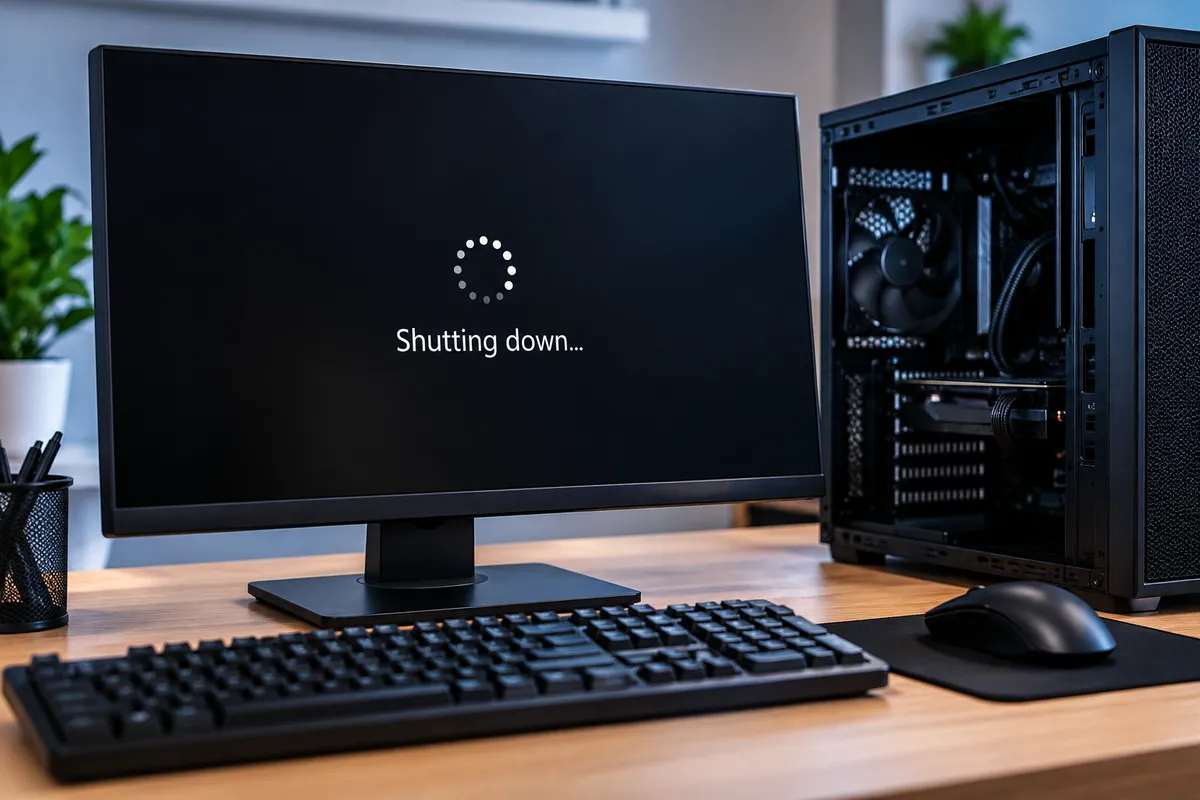
A desktop computer that shuts down without warning can interrupt work, gaming, downloads, and important file transfers. Sometimes the computer powers off completely. In other cases, it restarts a few seconds later or only fails when you launch a demanding program. The pattern matters because random shutdowns can come from heat, unstable power, memory faults, storage problems, or other hardware issues.
Quick Repair and Electronics provides computer repair in East Village, NYC for unexpected shutdowns, startup problems, black screens, overheating, storage faults, and other PC concerns. Instead of replacing parts based on guesswork, the useful first step is identifying when the shutdown happens and which component is actually causing the system to lose stability.
Overheating Is One of the Most Common Causes
Desktop processors and graphics cards generate heat whenever the computer is working. Fans, heatsinks, thermal materials, and case airflow are designed to move that heat away from sensitive components. If cooling becomes ineffective, the system may reduce performance or shut itself down to protect the hardware.
Dust buildup, blocked vents, failed fans, dried thermal compound, and poor airflow can all contribute. Shutdowns that happen during gaming, rendering, video editing, or other heavy workloads are especially suspicious for a temperature problem.
You may also notice loud fans, unusually warm exhaust air, stuttering before the shutdown, or a computer that works again after it has cooled.
A Failing Power Supply Can Cause Sudden Power Loss
The power supply converts wall power into the voltages used by the motherboard, graphics card, storage devices, and other components. A failing or undersized unit may deliver unstable power even though the computer can still start normally.
Power-supply problems can cause immediate shutdowns, reboots under load, intermittent startup failures, or a PC that turns off when the graphics card begins drawing more power.
This is particularly relevant after a hardware upgrade. Installing a more demanding GPU or adding components can expose a power supply that is no longer adequate for the system.
Power supplies contain high-voltage components and should not be opened for home repair. Testing should focus on the system safely rather than disassembling the unit itself.
RAM Problems Can Make a Computer Unstable
Faulty memory can cause crashes, freezes, blue screens, failed boots, and random restarts or shutdowns. The symptoms may only appear when enough memory is being used, which can make the problem seem inconsistent.
If the issue started after installing or moving RAM, compatibility, seating, or a defective module may be involved. Memory testing can help determine whether the problem is repeatable.
Replacing RAM simply because a computer shuts down is not a reliable diagnosis, however. Power, heat, drivers, storage, and motherboard faults can create overlapping symptoms.
Can the Graphics Card Cause Random Shutdowns?
Yes. A graphics card can contribute through overheating, power demand, hardware failure, or unstable drivers. A PC that works during basic browsing but shuts down shortly after a game or graphics-heavy application starts deserves closer GPU and power-system testing.
Artifacts, screen corruption, driver crashes, or very high graphics temperatures before a shutdown can provide additional clues.
However, a heavy graphics workload also increases CPU and power-supply demand, so the graphics card should not automatically be blamed without testing the system as a whole.
Storage Problems Can Also Affect Startup and Stability
A failing SSD or hard drive is more commonly associated with freezing, slow startup, corrupted files, or operating-system errors, but severe storage problems can also make the PC appear to crash or restart unexpectedly.
If the computer has become slow, started showing disk errors, or is losing access to important files, protect the data before repeatedly forcing restarts. For cases where the storage device itself is failing, data recovery in NYC may become a higher priority than restoring normal operation immediately.
Software and Driver Problems Can Trigger Restarts
Not every shutdown is caused by failed hardware. Corrupted system files, unstable drivers, malware, failed updates, or software conflicts can trigger crashes and automatic restarts.
The distinction is useful: if Windows records an error and then reboots, the event may be software-related. If the computer loses power instantly with no shutdown process, power delivery or overheating becomes more suspicious.
Event logs and diagnostic testing can provide context, but one error message should not be treated as proof of the cause.
What Should You Check Before Bringing the PC in?
Start with simple observations rather than repeated disassembly. Check whether the shutdown happens during a particular program, only under heavy load, or even while the computer is idle. Note whether the fans become unusually loud and whether the case feels hot.
Make sure the power cable is firmly connected and, if practical, test a different wall outlet. Disconnect unnecessary USB accessories. If the problem began immediately after a hardware upgrade, mention that as well.
Avoid repeatedly turning the computer back on if you smell burning, hear electrical buzzing, see sparks, or notice a failing fan. Those symptoms deserve immediate inspection.
Should You Keep Using a PC That Randomly Shuts Down?
Occasional crashes can happen for many reasons, but repeated unexpected power loss should not be ignored. Each forced shutdown can interrupt file writes and increase the chance of corrupted documents or operating-system problems.
If the machine contains important business files, photos, or other irreplaceable data, make a current backup while the system is stable enough to do so.
Continuing to push an overheating or electrically unstable system can also turn a smaller repair into a more serious failure.
Does the Shutdown Happen Only Under Heavy Load?
When a desktop stays stable during light browsing but powers off during gaming, rendering, exporting video, or other demanding work, that pattern is valuable diagnostic information. Heavy workloads increase processor temperature, graphics-card temperature, memory use, and total power draw at the same time.
That means several components can be stressed together. A shutdown under load can point to inadequate cooling, an unstable power supply, a graphics problem, or another component that only fails when demand increases. Testing temperatures and power behavior under controlled conditions is more useful than assuming the most expensive part is bad.
If the computer also shuts down while idle, the diagnosis shifts. Intermittent power connections, motherboard faults, software crashes, or other issues become more important to investigate.
Desktop Computer Repair in East Village, NYC
Random shutdowns can come from overheating, power-supply problems, RAM faults, graphics issues, storage errors, drivers, or motherboard-level problems. Because the same symptom can have several causes, diagnosis should come before parts replacement.
Quick Repair and Electronics provides professional computer repair in NYC for desktop systems that shut down, restart, freeze, overheat, or fail to start reliably.
Bring the computer in and explain when the shutdown occurs, whether any hardware was recently changed, and what symptoms appear before the power cuts out. Our technicians can inspect the system, identify the likely cause, and discuss the repair or upgrade options that make sense for the PC.