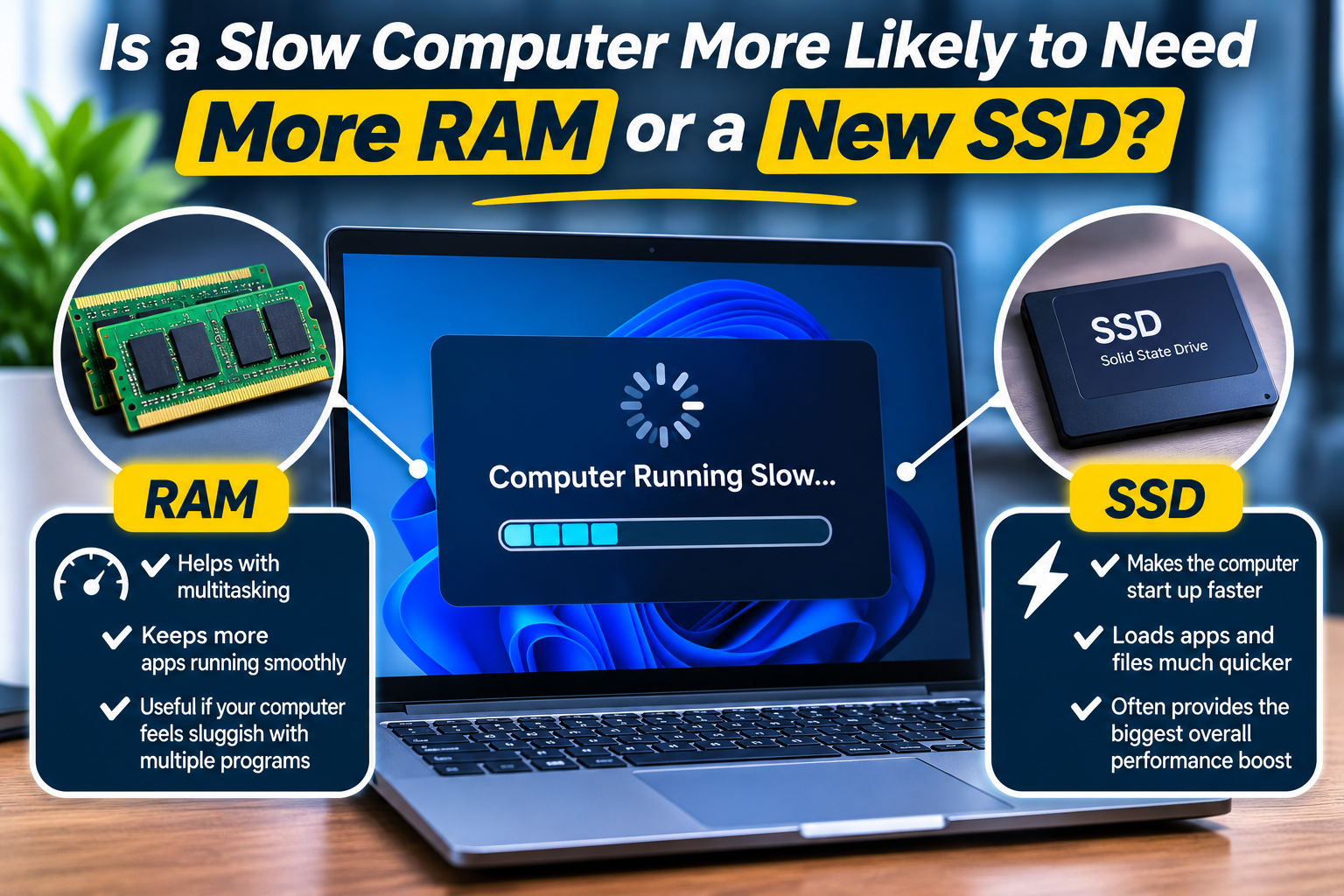
Is a Slow Computer More Likely to Need More RAM or a New SSD?
A slow computer often leads to the same upgrade question: should you add more RAM or replace the storage drive with an SSD? Both upgrades can improve performance, but they solve different bottlenecks. Adding memory helps when the system runs out of working space for active programs. A faster SSD helps when the computer spends too much time reading and writing files, loading Windows, or opening applications.
The best answer depends on what the computer is doing when it feels slow. Quick Repair and Electronics provides computer repair in East Village, NYC for slow desktops, upgrade planning, startup problems, and hardware diagnosis. Looking at the symptoms before buying parts can prevent an upgrade that sounds impressive but barely changes day-to-day performance.
Start With the Type of Slowness You Actually Notice
Performance problems are easier to diagnose when you describe the moment they happen. A computer that takes several minutes to boot has a different bottleneck from one that becomes sluggish only after opening many browser tabs. Likewise, a system that freezes while copying large files may point toward storage, while a machine that slows down during heavy multitasking may be short on memory.
Instead of asking which component is “better,” ask what task is waiting. That shift keeps the diagnosis tied to real workload rather than upgrade trends.
When More RAM Makes the Biggest Difference
RAM stores the information that active programs need quickly. If available memory is nearly full, the operating system starts relying more heavily on storage as virtual memory. That can make switching between applications slow, cause browser tabs to reload, and create stuttering when several programs are open together.
More RAM is especially useful for heavy multitasking, large spreadsheets, photo editing, development tools, virtual machines, or users who keep dozens of tabs and communication apps open. If memory usage is consistently near the limit during normal work, increasing capacity can provide noticeable breathing room.
When an SSD Upgrade Changes the Computer More
Storage speed affects boot time, application launches, file searches, updates, and many routine tasks. Older desktops that still use a mechanical hard drive often feel dramatically faster after moving the operating system and applications to an SSD. The computer may start in seconds instead of minutes, and common programs can open much more quickly.
An SSD can also help a system that has enough RAM but constantly waits on disk activity. However, replacing storage will not solve a memory shortage. If the computer slows only when many programs are open, an SSD may make loading faster without fixing the underlying multitasking limit.
A Slow Computer Can Have Problems That Neither Upgrade Fixes
Not every performance issue is an upgrade problem. Overheating can force the processor to reduce speed. Malware, damaged system files, background software, failing storage, driver conflicts, and power problems can all make a capable computer feel slow.
A nearly full drive can also hurt responsiveness, even when the drive itself is healthy. Before buying RAM or an SSD, check whether the machine is overheating, whether storage health is questionable, and whether resource usage points to a clear bottleneck. Computer diagnostics are often cheaper than replacing the wrong part.
How to Read the Symptoms Without Becoming a Hardware Expert
A few patterns are useful. If the computer is slow immediately after startup and disk usage stays high, storage deserves attention. If performance degrades as more applications open and improves after closing them, memory pressure is more likely. If the system is fast sometimes and painfully slow other times, heat, background activity, or failing hardware may be involved.
These clues are not perfect diagnoses, but they help narrow the direction. The goal is to match the upgrade to the workload rather than assume every slow computer needs the same fix.
Upgrade Compatibility Still Matters
RAM and SSD upgrades have compatibility limits. Desktops support specific memory generations, speeds, capacities, and slot configurations. Storage upgrades depend on whether the system supports SATA drives, NVMe drives, or both. An inexpensive part that does not match the motherboard is not an upgrade at all.
There is also a balance question. Putting very high-capacity RAM into an old system with a weak processor may not be the best use of the budget. Likewise, installing a premium NVMe drive into a computer limited by another component may deliver less benefit than expected.
Repair, Upgrade, or Replace?
A sensible upgrade should extend useful life without turning an aging system into a money pit. If the computer is otherwise reliable, an SSD or moderate RAM increase can be worthwhile. If the machine also has motherboard problems, severe overheating, repeated crashes, or several failing components, replacement may deserve consideration.
The decision should consider the age of the system, the cost of the parts, the work you need it to do, and how long you expect to keep it. That is a better framework than chasing benchmark numbers.
Task Manager Can Help Confirm the Bottleneck
Windows Task Manager can provide a useful snapshot of what the system is waiting on. If memory usage is routinely near capacity while you work, more RAM becomes a stronger candidate. If disk activity remains near 100 percent while the system pauses, storage deserves attention. CPU usage that stays high may indicate demanding software, background processes, or a processor limitation instead.
The numbers should be read in context rather than treated as absolute rules. A short spike is normal. What matters is sustained pressure that matches the moments when the computer feels slow. That is the kind of evidence a technician can combine with hardware health checks before recommending an upgrade.
The Best Upgrade Is the One You Can Feel in Your Daily Work
Benchmarks can make one component look dramatically faster, but the useful question is whether the improvement changes the tasks you perform every day. A fast SSD is valuable if you constantly wait for startup and file access. More memory is valuable if your workflow regularly pushes the current capacity to its limit.
For many older systems, the strongest result comes from a balanced upgrade rather than maximizing one specification. A moderate amount of RAM paired with healthy solid-state storage can make the computer feel more responsive than overspending on either component while ignoring the rest of the system.
What a Proper Performance Check Should Confirm
A useful diagnosis should confirm storage health, available memory, startup load, temperatures, and whether the system is spending abnormal time on disk or background processes. That prevents a simple upgrade conversation from overlooking a failing drive or cooling problem. The goal is not to sell the biggest part; it is to identify the bottleneck that is actually slowing the computer.
Get the Right Computer Upgrade in East Village, NYC
If your computer is slow and you are deciding between more RAM and a new SSD, start with diagnosis rather than guessing. The correct upgrade depends on whether the system is limited by memory, storage, heat, software, or another hardware issue.
Quick Repair and Electronics provides computer repair in East Village, NYC for slow PCs, hardware upgrades, and performance problems. Bring the computer in and tell us when the slowdown happens and what you normally use the system for. Our technicians can evaluate the bottleneck and recommend the repair or upgrade path that is most likely to improve real-world performance.