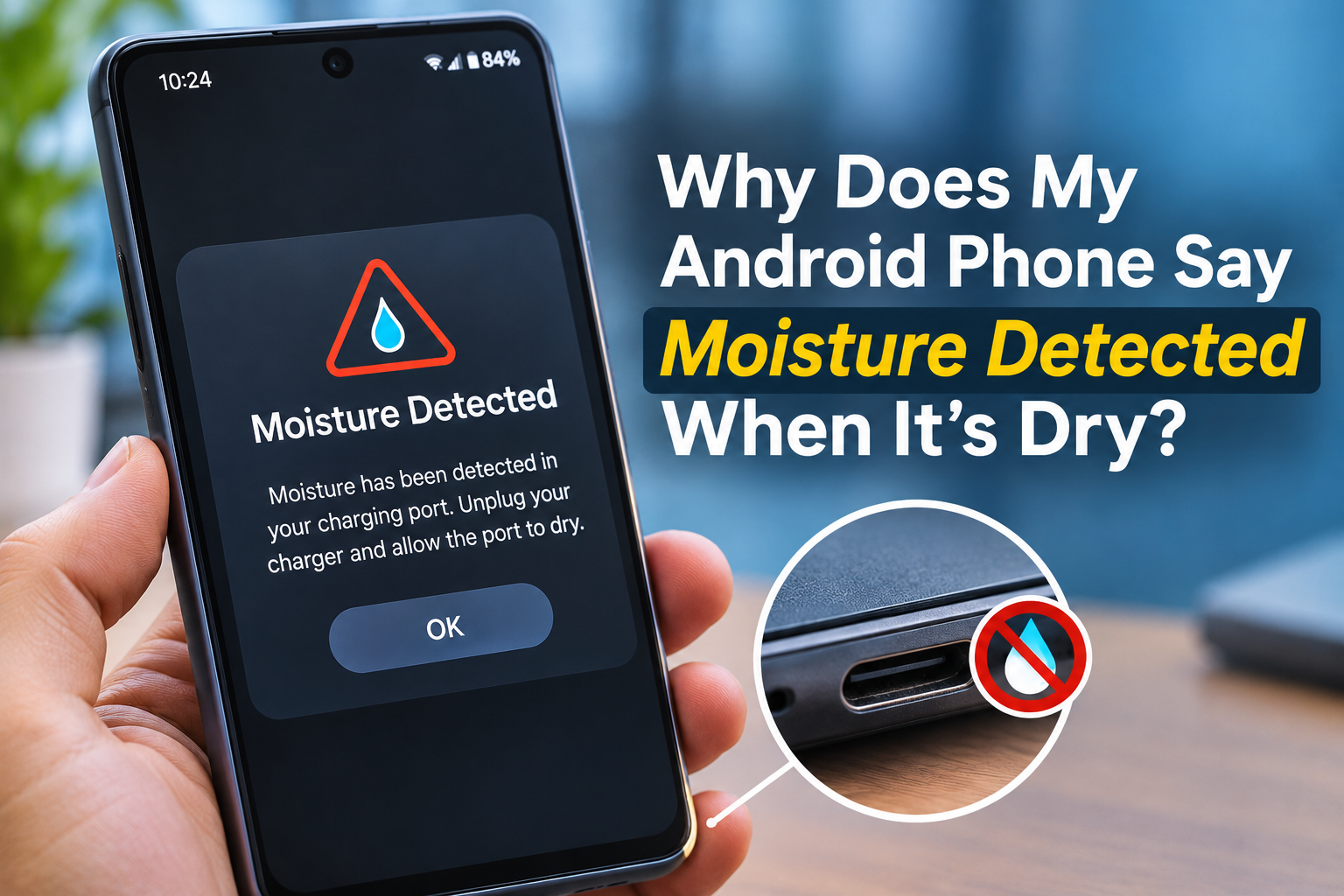
Why Does My Android Phone Say Moisture Detected When It’s Dry?
A “moisture detected” warning can be unsettling when your Android phone has not been near water. The alert usually appears because the charging system believes there may be moisture, contamination, or an electrical condition inside the USB-C port that could make wired charging unsafe. Sometimes the phone is reacting to real moisture that is difficult to see. In other cases, lint, corrosion, residue, a damaged cable, or a worn charging port can trigger the same warning.
The important point is that the message should not be treated as something to bypass immediately. Quick Repair and Electronics provides Android phone repair in East Village, NYC for charging-port problems, battery concerns, display issues, and other hardware faults. A proper inspection can separate a temporary sensor warning from a port or charging-system problem that needs repair.
What the Moisture Warning Is Actually Protecting
Modern Android phones monitor the charging connection because electricity and moisture are a bad combination. If the device detects unusual resistance or conductivity around the USB-C contacts, it may temporarily block wired charging. That protection is designed to reduce the chance of corrosion, short circuits, or damage to the charging hardware.
The warning does not mean the phone has proven that there is visible water inside the port. It means the electrical conditions look suspicious enough that the phone is choosing caution. That distinction explains why the message can appear after humidity, pocket lint, a dirty connector, or a damaged port even when the device feels completely dry.
Hidden Moisture and Humidity Can Linger Longer Than Expected
A phone can be dry on the outside while a small amount of moisture remains in the charging port. Condensation may form after moving between cold air-conditioning and a hot, humid environment. Steam from a bathroom, sweat, rain droplets, or a damp cable can also introduce moisture without a dramatic spill.
Because the USB-C port is narrow, evaporation can take time. Repeatedly plugging in a charger may also push moisture or debris deeper into the connector. If the warning appeared after the phone was in a humid place, allow the port to air-dry naturally before assuming the sensor is malfunctioning.
Debris, Residue, and Corrosion Can Mimic Moisture
Charging ports collect more than water. Pocket lint, dust, skin oils, dried drink residue, and corrosion can change the electrical behavior of the connector. The phone may interpret that contamination as moisture because the contacts are no longer behaving normally.
This is one reason aggressive DIY cleaning can backfire. Metal pins, needles, and sharp tools can bend or scrape the small contacts inside the USB-C port. If debris is packed tightly or the warning keeps returning, the safer approach is to have the connector inspected and cleaned with methods appropriate for electronics.
The Cable or Charger May Be Part of the Problem
A damaged charging cable can create intermittent contact, carry contamination from another device, or introduce electrical behavior that triggers the warning. If the alert appears only with one cable or adapter, stop using that accessory and test with a known-good compatible charger after the phone has had time to dry.
Do not force charging simply because a different cable makes the message disappear. If the port feels loose, the connector sits at an angle, or charging starts and stops when the cable moves, the underlying issue may be mechanical wear rather than moisture alone.
Software Can Contribute, but Hardware Clues Matter More
A temporary software glitch can occasionally keep a moisture notification active after the port has dried. Restarting the phone and installing legitimate system updates may help if the hardware is otherwise behaving normally. Clearing random system apps, factory-resetting the device, or using unofficial bypass methods is rarely the right first move.
Pay attention to physical clues. A recurring warning combined with slow charging, heat near the port, cable movement, visible discoloration, or recent liquid exposure is more consistent with a charging-system issue than a simple notification bug.
Why Bypassing the Warning Can Be Risky
Some online fixes focus on forcing the phone to charge despite the warning. That approach can create a bigger problem if moisture or conductive residue is actually present. Sending power through contaminated contacts may accelerate corrosion or damage the charging assembly.
Wireless charging can sometimes be a temporary alternative on compatible phones, but it does not repair the USB-C port. If you rely on wireless charging while ignoring a recurring port warning, the underlying damage may continue progressing until wired charging or data transfer stops working completely.
When the Warning Needs a Repair Inspection
A one-time alert that disappears after drying is different from a warning that returns for days. Inspection becomes more important when the message persists, the port looks corroded, charging becomes slow or intermittent, the phone recently experienced a spill, or the connector has to be positioned carefully to work.
A technician can inspect the port, charging flex, battery behavior, and surrounding components instead of replacing parts based on guesswork. That is especially useful when the phone contains important data and you want to avoid unnecessary resets or risky charging attempts.
What to Notice Before the Warning Appears Again
The pattern around the warning can reveal more than the message itself. Note whether it appears only after charging overnight, after the phone has been in a pocket during a hot day, after using one specific cable, or after moving between air-conditioned and humid environments. Also watch whether the alert disappears when the phone is left unplugged for several hours. Those details can help separate environmental moisture from a connector that has become electrically unstable.
It is also useful to notice whether other USB functions have changed. A port that still charges but no longer connects reliably to a computer, car, or accessory may have damaged contacts. When charging, data transfer, and moisture alerts begin changing together, the evidence points more strongly toward the connector rather than a random software notification.
Prevention Is Mostly About Keeping the Port Clean and Dry
Most users do not need special accessories or aggressive maintenance. Avoid charging the phone while the connector is visibly wet, keep drinks away from charging cables, and replace cables that are frayed or contaminated. If the device is exposed to rain or heavy humidity, give the port time to dry before plugging it in.
A small amount of prevention can also reduce mechanical wear. Pull the connector straight out instead of twisting it, avoid using the phone heavily while a cable is hanging from the port, and do not leave the plug under sideways pressure. Those habits reduce stress on the same contacts that the moisture-detection system monitors.
Get Android Charging Help in East Village, NYC
If your Android phone keeps showing a moisture-detected warning even though the device seems dry, do not keep forcing the cable into the port or repeatedly dismissing the alert. The cause may be trapped moisture, debris, corrosion, a damaged connector, or another charging-system fault.
Quick Repair and Electronics provides Android phone repair in East Village, NYC for charging-port and power problems. Bring the phone in and tell us when the warning started, whether the device had any liquid exposure, and which chargers you have tried. Our technicians can test the affected hardware and explain the repair options that make sense for the condition of the device.